
Student Onboarding
Student Onboarding
Congratulations! Your organization has entrusted Zephyr with your training needs. Below are some resources that will serve to onboard you with the Learning Management System and how to download and install the simulator.
QuickStart
Below is our video series about the LMS and Little Arms Launcher
- How To: Installing and Running the Launcher Patcher and Zephyr Drone Simulator
- How To: Student LMS Walkthrough
Invitation
You will receive an invitation via email from your organization. Click the "Create Account" button in the email and complete your registration.
Once you have created your account, sign in at zephyr-sim.com.
At the top of your dashboard you should see a blue banner with the invitation details and an "Accept" button. Click the "Accept" button. You should then be presented with a window that will let you select your new Student role.
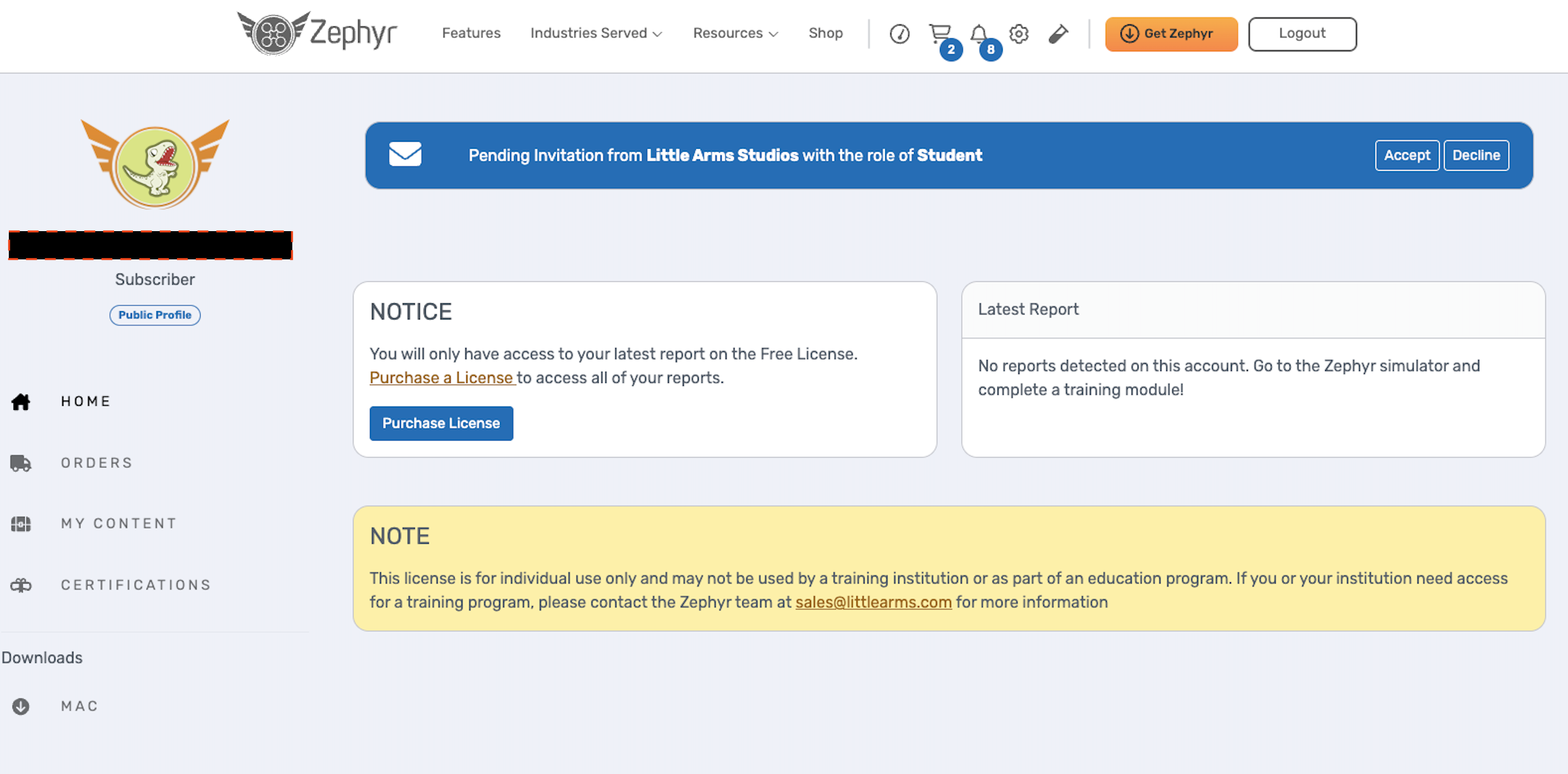
Example Invitation Notification
Student Dashboard
On the student dashboard you will see:
- Course Details
- Most Recent Flight
- Assignments
For Assignments, please visit the #student-view-and-workflow page